Click a word, hear the moment
7cubit Team
More in Podcasting
Someone will eventually ask for “the part where the guest talks about the warehouse.” In a two-hour interview, that description is not a timestamp. Finding it by scrubbing means guessing, listening, backing up, and repeating until the right laugh or phrase appears.
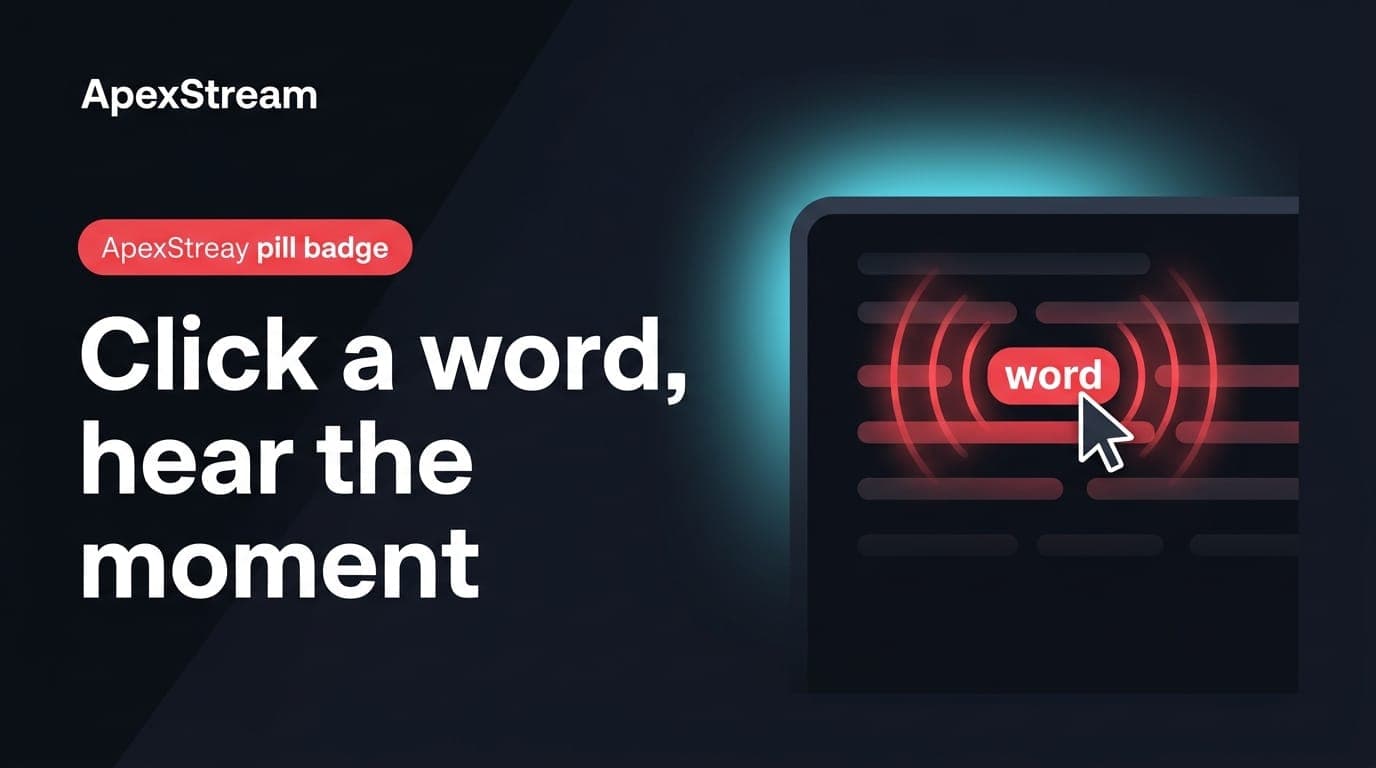
A word-level transcript gives you a better starting point. In Podcast Studio, click a word and playback seeks to that part of the recording. The transcript becomes an index you can navigate instead of a caption file you only read after the edit.
What seek-on-click changes
After you open an episode in the Editor and transcription finishes, each word is tied to an audio position. Click the first word of a sentence and listen from there. If it is the wrong occurrence of “basically,” click the next one. You are narrowing the search by language rather than by rough minute marks.
The same surface supports editing. Land on the phrase, listen to the surrounding context, select the words that do not earn their place, and mark them for removal. You do not have to bounce between a text search and a timeline ruler to find the section first.
Why long episodes need an index
Memory is a poor timecode. You may remember the story about a guest’s first job but not whether it happened at minute 34 or minute 71. A word-level transcript is not perfect—proper nouns can be wrong, and overlapping speech can confuse it—but a distinctive phrase usually gets you close enough to confirm the moment by ear.
This is particularly useful when the live show happened several days before the podcast edit. The emotional map of the conversation fades quickly. The transcript gives you a searchable record of what was said.
Use distinctive anchors
Search mentally for names, numbers, product terms, and odd metaphors. “Invoice float” is a better anchor than “the good answer about pricing.” Click into the phrase, listen backward far enough to hear the setup, and decide whether the lead-in should stay.
Rename speakers early. Colored, labelled blocks let you scan only the guest’s sections when that is who you need to review. The same method helps with chapter timestamps: click the opening word of a topic, confirm where it begins, then enter that time in Show Notes & Chapters.
What seek-on-click cannot decide
A transcript that is still processing cannot provide reliable seeking. A noisy room or overlapping speakers can create a map that lands near, but not on, the phrase you want. Listen before making a cut. A correct location does not guarantee a natural edit; removing the breath between two thoughts can leave an awkward splice.
Seek-on-click also does not replace the final listen. It makes retrieval quicker. You still decide whether the guest’s tone, context, and answer belong in the published episode.
A handoff that saves a collaborator time
Give a reviewer a content anchor instead of a vague timestamp. “Click into the section where she says ‘invoice float’” tells them what to look for and lets them confirm the cut in context. For your future self, a note such as “trim the VPN tangent starting at ‘tunneling’” is more useful than “fix the middle.”
A long episode without seekable text is a warehouse without aisle numbers. The file is there; finding the right box should not be the hard part.
One small interaction can change whether a long recording gets finished. When a sentence is only a click away, the editor spends more time judging the conversation and less time negotiating with the waveform.
A faster transcript edit
- Open the episode after the recording has finished processing.
- Click a transcript word to move the playhead to that moment.
- Select the unwanted words or passage and make the cut from the transcript.
- Listen across the edit, then continue with chapters, metadata, and publishing.