Flight Log: Your Stream History as a Workflow Tool
7cubit Team
More in Creator Guides
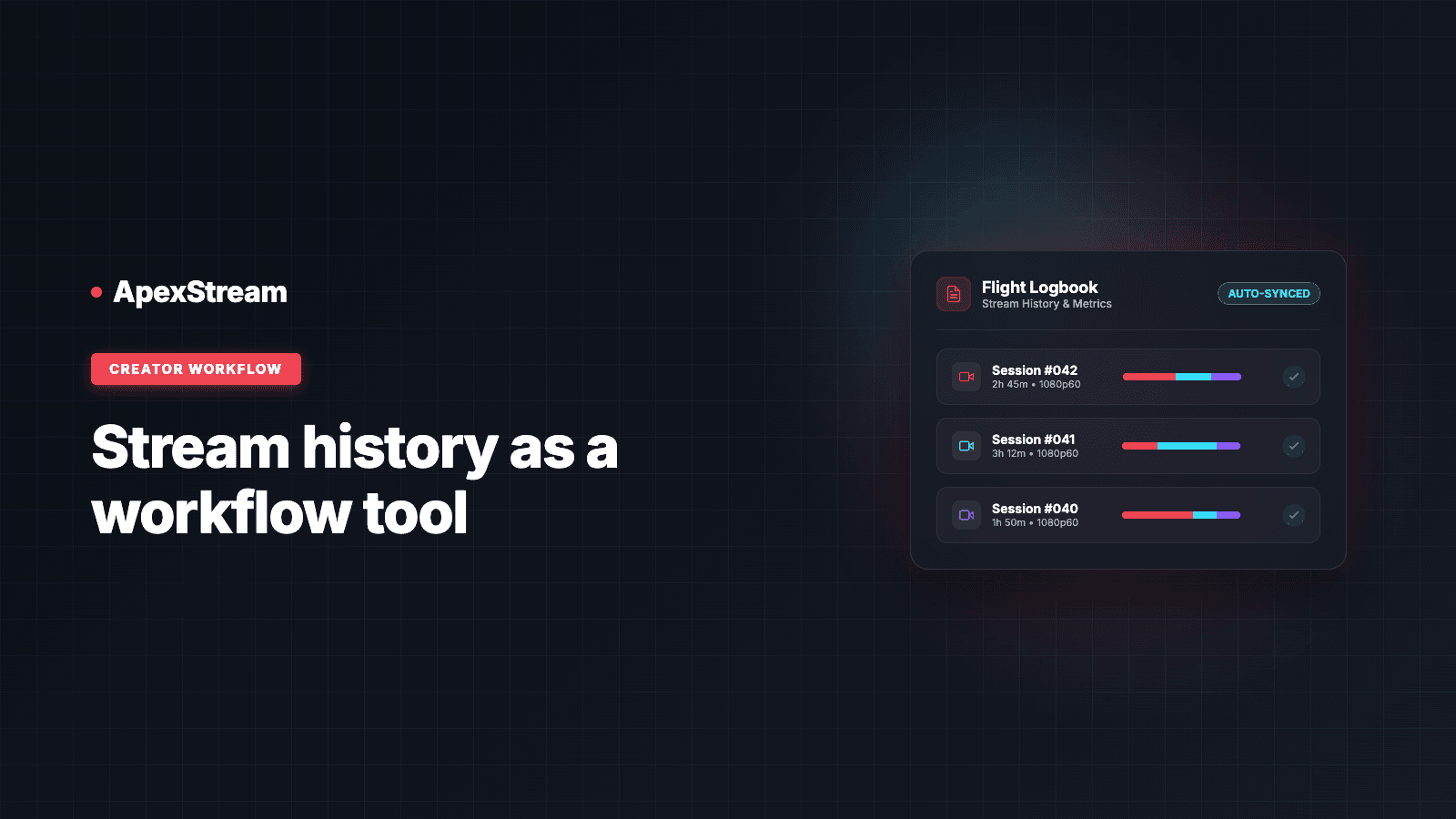
The useful question after a live show is rarely “did it end?” It is usually “where is the recording, what should we reuse, and what did each destination tell us?” If those answers live in different browser tabs and an old run-of-show document, the post-show work starts with archaeology.
Flight Log is the place to turn a broadcast into a next action. It brings together the session history, playback and downloads, destination analytics links, reusable settings, and—on Scale and Enterprise—Schedule Replay.
Start with the session record
Open a Flight Log entry after the broadcast and confirm the recording status before you plan an edit. On plans with cloud recording, the file moves through processing before it is ready. A Ready status is the useful handoff point: review it, download it, or send it into the next workflow.
Retention and storage determine how long that working copy remains available:
- Free: 7 days of history; Web Studio cloud recording is disabled.
- Hobby: 25GB and 15-day retention.
- Creator: 100GB and 15-day retention.
- Scale: 500GB and 30-day retention.
- Enterprise: up to 10TB and 365-day retention.
The numbers describe a working library, not a permanent archive. Download anything you need to keep before its retention window closes.
Use one entry to review every destination
A multistream gives you several audience views of the same show. Flight Log keeps the session as the common reference, then links out to the native analytics pages for connected destinations such as YouTube, Facebook Profiles and Pages, Twitch, and LinkedIn.
That makes a post-show review more specific. Compare the peak concurrency, watch duration, or chat activity on the destination where the show felt lively with the destination that brought the most discovery. Then record the decision you will carry into the next rundown. A link is useful; a repeatable review habit is better.
Reuse the parts that worked
Weekly shows often repeat the same layout, guest flow, overlays, countdown, and destination list. Rebuilding each one from memory adds risk without adding creativity.
Use Reuse Settings on a past Flight Log entry to load that broadcast’s studio configuration into Web Studio. Treat it as a starting point, not a promise that every detail should remain unchanged. Update the guest list, titles, privacy, and any time-sensitive text before the next go-live.
Turn one stream into several deliverables
On Hobby and above, a Web Studio recording can bridge into Podcast Studio as a draft. That is useful when the live conversation is also the raw material for transcript editing, filler-word removal, silence shortening, RSS publishing, or Spotify distribution.
AI Clips use recordings too. Creator includes 3 clips per stream, while Scale and Enterprise include unlimited clips. The result is a downloadable vertical 9:16 MP4 with caption and layout options. On Scale and Enterprise, ISO guest audio and video tracks are also available for teams that need separate speaker sources in post-production.
The sequence is simple: confirm the master is Ready, decide whether the long-form or short-form version comes first, then download the assets you cannot afford to lose.
When Schedule Replay makes sense
Schedule Replay is available on Scale and Enterprise. It lets you select an archived stream and schedule it to run again as an automated simulated live stream at a future date and time.
That can help when a good session deserves another time zone, but it is not a substitute for checking whether the recording works as a replay. Review the title, destination list, privacy, and audience expectation before scheduling. A replay should be labeled clearly enough that viewers know what they are watching.
A five-minute post-show routine
- Open the Flight Log entry and check the final status.
- Watch enough of the beginning and a key section to catch obvious audio or layout problems.
- Download the master and flag any other files that must survive the retention window.
- Open the relevant destination analytics links and note one decision for the next show.
- Reuse the settings only after replacing old titles, guests, links, and privacy choices.
Flight Log is most useful when it changes what happens next: archive the keeper, reuse the working setup, and carry one measured lesson into the next broadcast.
A stream history page becomes a workflow tool when it is part of the production calendar, not a place you visit only after something goes wrong. Close the loop while the show is still fresh.