Live Captions from One Microphone: Why Host-Only Transcription Makes Interviews Better
7cubit Team
More in Creator Guides
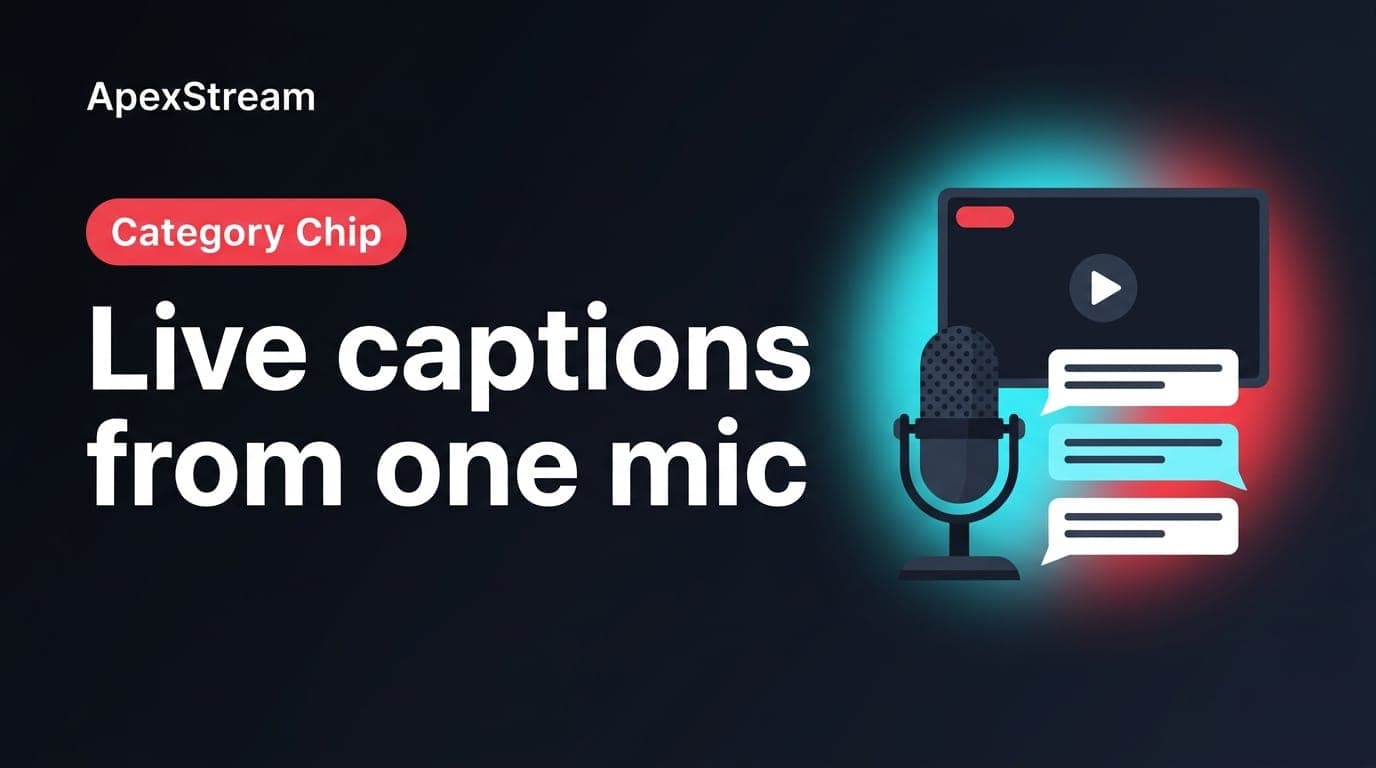
Captions help a live show reach people watching with the sound low or off. In an interview, though, captioning every microphone can create a second conversation on screen. Two people talk over each other, a guest's room noise is interpreted as speech, and the text becomes harder to follow than the audio.
Web Studio takes a narrower approach: AI Live Captions transcribe the host microphone only. That limitation is useful when the host is guiding the interview and the guest's voice is already clear in the video and audio mix.
What host-only captions actually mean
When you ask a question or summarize a point, your words appear as captions. When the guest answers, the host captions pause rather than trying to identify and transcribe a second source. The screen stays quieter, and the viewer's attention can move to the guest's face and delivery.
This is a good fit for interview formats where the host supplies the structure: introductions, questions, transitions, and a final recap. It is not a substitute for a full transcript of every participant. If your main goal is to caption a panel word-for-word, host-only transcription will not cover that requirement.
Web Studio sessions support up to five guests on the Free plan and up to ten on paid tiers. The more faces and graphics you place on screen, the more valuable it is to keep caption text limited to one predictable source.
Pick the size for the scene, not the feature list
Live captions are available in Small (S), Medium (M), and Large (L). Choose the size after you have built the scene:
- Small: useful for a panel, a grid, or a scene that already contains lower-thirds, a logo, and a ticker.
- Medium: a practical default for a one-on-one interview. It is readable without taking over the frame.
- Large: better when the host is alone, teaching, or delivering a short monologue where the spoken words are part of the visual experience.
Watch the preview from the distance your audience is likely to use. If the text covers a guest's face or collides with another overlay, change the size or simplify the scene. Making captions smaller is not always the answer; removing a competing element may be clearer.
Choose the language and protect the audio
Select the caption language that matches the host's speech before the show. Then give the system a clean source to work with. Complete the noise suppression check during pre-flight, use the microphone you intend to use on air, and avoid switching sources after the caption test.
Host-only transcription does not make unclear audio clear. A quiet microphone, room echo, or background noise can still produce mistakes. Read the first few caption lines in the preview and adjust the mic position or input level before inviting the audience in.
Build the interview around the caption rhythm
Let the captions support the host's job instead of trying to narrate the whole call. State the question cleanly, leave room for the guest to answer, and use a brief summary when you need to move to the next topic. This creates natural pauses for the text and makes the conversation easier to follow even when the viewer is scanning.
For a first test, run the opening, one question, and the handoff to the guest. Check that the captions appear when you speak, stop when you stop, and remain readable beside your lower-thirds. If the scene is crowded, try S. If the text is part of a lesson, try L.
Host-only captions are a deliberate tradeoff: less coverage, more control. For interviews, that can be the difference between useful accessibility and a screen full of uncertain text.
Tell the audience what the captions cover
Because the guest’s speech is not transcribed, set expectations early. A short line in your description or opening can explain that live captions follow the host microphone. That prevents a viewer from assuming the caption stream has failed when the guest begins answering.
This arrangement works especially well when the host repeats the important parts of the conversation. After a long answer, summarize the key point or restate the next question. The summary is useful to a viewer reading captions, and it gives the show a clean transition without pretending the system captured every word from the guest.
It is less suitable for a debate where several speakers interrupt one another, a panel where every answer must be captioned, or a training session that requires a complete transcript. In those cases, explain the limitation before you plan the production and consider a separate captioning workflow that covers every audio source.
Review a short sample, not the whole show
You do not need a long rehearsal to catch the common issues. Speak an introduction, ask a question, change the scene, and read the resulting lines. Check punctuation, language choice, size, and placement. Then listen to the guest answer without speaking over them. If the captions stop cleanly, the audience can follow the change in speaker without a pile-up of text.
Frequently asked questions
Whose speech do Live Captions transcribe?
The feature transcribes the host microphone. It is not a full transcript of every guest and destination comment in the room.
Can I change the caption size?
Yes. Web Studio offers Small, Medium, and Large caption sizes so you can balance readability with the faces and graphics in the scene.