Reading unified chat while hosting without melting your brain
7cubit Team
More in Creator Guides
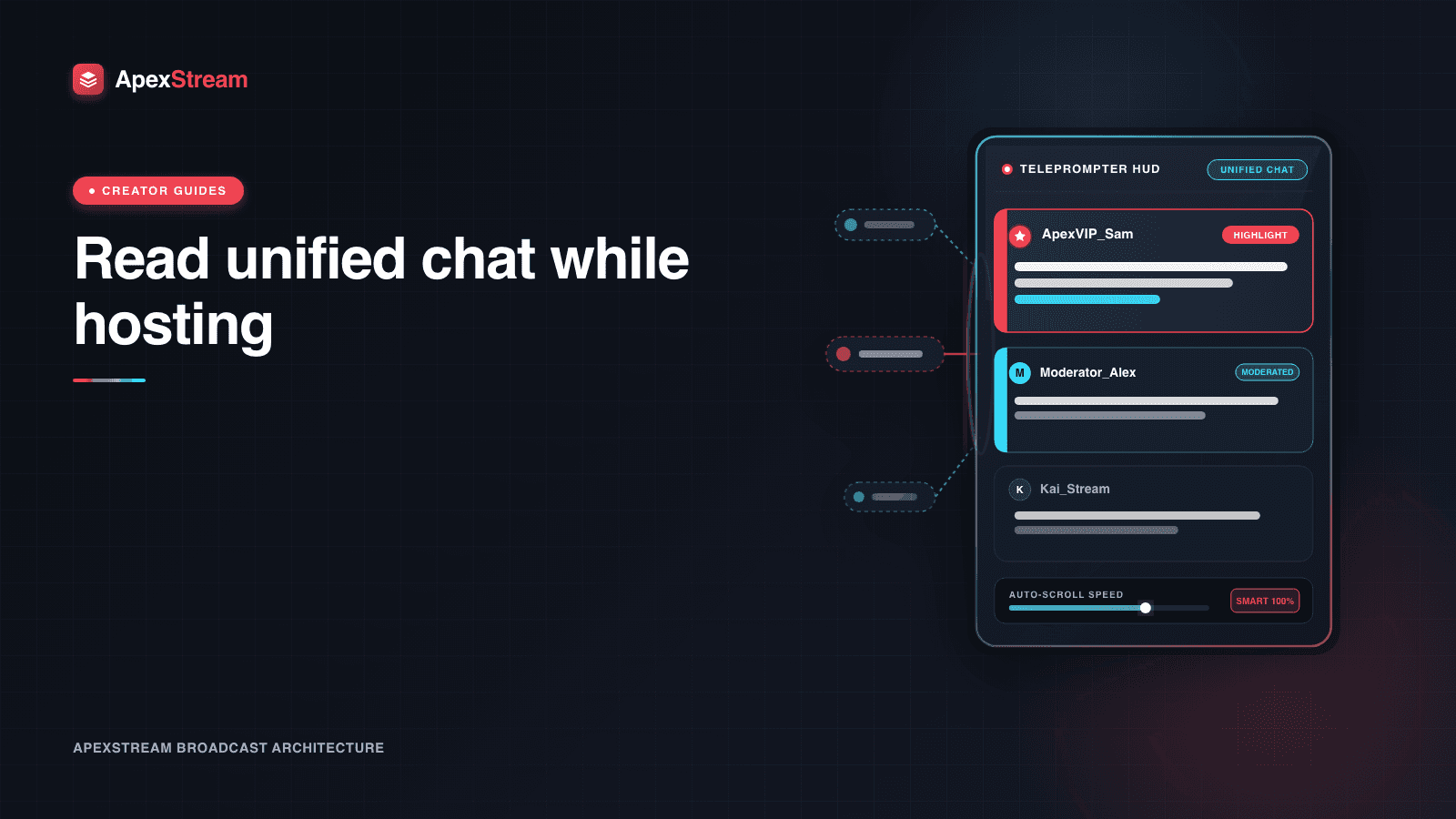
You cannot deliver a clear explanation, watch the timer, change scenes, and read every incoming message at the same time. Trying usually creates the same result: the host stops mid-sentence, the chat moves on, and nobody gets a complete answer.
Web Studio’s unified chat puts YouTube, Facebook, and Twitch messages in one panel for Hobby and above. The panel removes the tab switching, but it does not remove the need for a rhythm. The useful skill is deciding when to look, what to select, and when to return to the show.
Use a short triage cycle
- Present: finish a thought, explain the step, or complete the demonstration without watching the chat.
- Scan: pause at a natural break and look for questions, repeated confusion, or a useful reaction.
- Choose: answer one message on mic, then return to the camera and continue.
The exact timing depends on the show. A 30–60 second explanation followed by a brief scan is a reasonable starting point. During a fast Q&A, you may scan more often; during a story or demonstration, wait for the next break. The important part is that chat has a place in the structure instead of competing with every sentence.
Let the platform badges help
Unified chat keeps messages together and shows where they came from. Use that information for attribution, not for ranking one community above another. “That question came from YouTube” tells the room which part of the audience you are answering and helps viewers understand that the combined chat is active.
You do not need to read every greeting by name. A quick hello to the room is enough for a wave of emotes or welcome messages. Save the microphone for questions that move the topic forward.
Sort messages while you scan
- Answer now: a clear question about the topic or the step you just showed.
- Save for later: a good question that belongs in a coming segment.
- Acknowledge briefly: greetings, reactions, and encouragement.
- Skip: off-topic arguments, repeated promotions, or messages that would derail the show.
Busy chat is not a test you have to pass line by line. Pick one visible question, answer it well, and say that you cannot reach everything. Viewers usually prefer a useful answer to a rushed attempt at completeness.
Use polls to structure the room
When the audience needs to choose between a few options, launch a Web Studio poll instead of asking the chat to repeat the same sentence. Viewers type 1, 2, 3, or 4 in the chat, and the poll aggregates the responses from the supported chat destinations.
A poll turns a fast-moving conversation into a result you can use. Ask one question, give the audience enough time to respond, then close it and explain what the result changes. Do not run a poll just to create motion on screen.
Give the host a boundary
Keep the chat panel close enough to glance at without placing it where your eyes leave the camera for the entire show. If you have a co-host or producer, agree on a signal for “answer this next” so the primary host does not have to monitor every line.
Unified chat is a shared inbox, not a second script. Use it to hear the room, choose a few high-value moments, and keep the rest of the show moving. That is enough engagement for a human host to sustain.
It also helps to tell viewers when you will take questions. A line such as “I’ll scan chat after this example” gives the room a clear expectation and lets you finish the explanation without appearing to ignore anyone. When you return to the panel, answer the most relevant question first and name the next point you need to cover.
If the feed is moving too quickly, do not apologize for skipping messages. State that you are selecting questions and keep the promise to answer the chosen one carefully. The boundary protects the pacing of the show and makes the answer easier for everyone to hear.