Titles and descriptions: what actually propagates to each platform
7cubit Team
More in Creator Guides
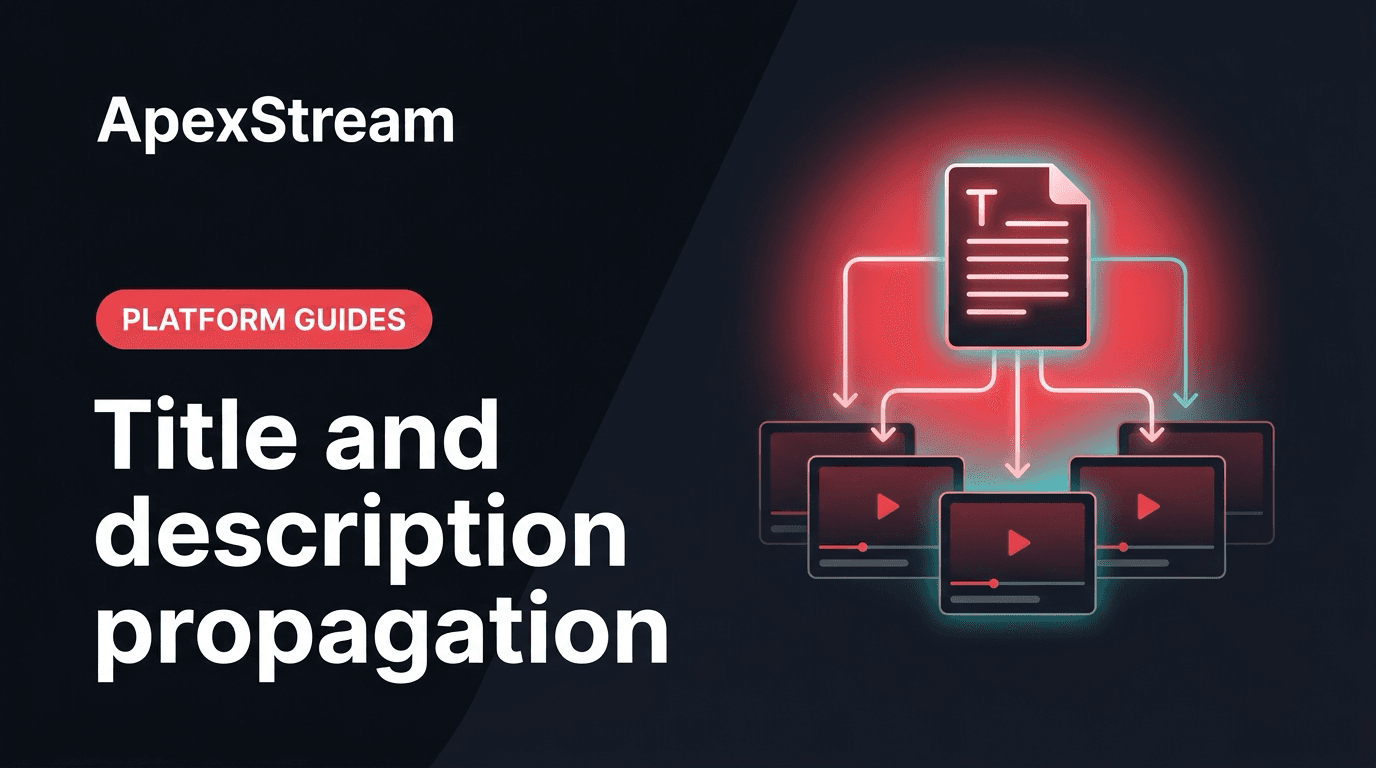
One title and one description do not behave the same way on every destination. If you set up a multistream expecting the full text to appear everywhere, you may think the connection failed when a platform accepts only the title. The useful workflow is to check each channel’s Edit screen and write the metadata that channel can actually use.
YouTube accepts the full set
On the YouTube channel’s Edit screen in ApexStream, you can set the title, a full description, and the privacy status: Public, Unlisted, or Private. Use that space for the information viewers will need after the live show, such as resource links, sponsor details, and timestamps you plan to add to the replay.
Check the text before you start sending the feed. YouTube is the destination in this workflow where the description has the most room to do long-term work, so write it as more than a collection of keywords. Tell the viewer what the broadcast covers and where the important links are.
Other destinations may take the title only
For Twitch, Facebook, and LinkedIn, ApexStream may send the stream title without a separate long description. That reflects the fields their live-video connections accept. A description you type into a general ApexStream field cannot be assumed to appear on those channels.
Facebook Profiles and Pages are supported in the source workflow; Facebook Groups are not. Treat the title as the primary text that accompanies the live video there. If the destination has its own post editor, you can use that platform’s tools for any additional copy it supports.
Set expectations before you write
Open each connected destination’s Edit screen and look at the fields shown. Those controls are a practical map of what ApexStream can pass through for that platform. If a description box is missing, do not spend time filling a field that will not be sent.
This is also why a single universal description is not a complete multistream plan. Decide which details must be available on every channel, then put them in the title or in an on-air element that all viewers can see.
Use the title for the shared promise
The title is the metadata most likely to travel across the connected destinations. Make it specific enough to explain the show and short enough to survive mobile notifications. Put the topic first, then the useful qualifier: “Live camera setup for small studios” is clearer than a vague brand slogan.
Do not make the title carry every link, sponsor note, or instruction. A crowded title is hard to scan and may be truncated differently on each platform.
Move critical details into the show
If a link or instruction must reach viewers on Twitch or Facebook, do not rely only on a YouTube-style description. Say it on mic, use a ticker or lower-third in Web Studio when it fits the scene, or send it through unified chat on Hobby and above. Reply-out can send a message to the connected YouTube, Facebook, and Twitch chats, with targeted routing when only one platform needs the answer.
On-screen copy has tradeoffs too. A ticker is useful for a short reminder, but it can distract from an interview or tutorial. Use the channel metadata for context and the live elements for the one action viewers need right now.
A repeatable metadata check
- Write the shared title and confirm it is readable on mobile.
- Complete the YouTube description and privacy choice if YouTube is connected.
- Review the fields available for Facebook, Twitch, and LinkedIn.
- Move any critical link or instruction into the show or unified chat.
- Preview the title and description on the destination before activating it.
Multistream metadata is a set of platform-specific promises, not one box copied everywhere. Knowing what each Edit screen can send keeps the setup predictable and your audience informed.