The upload-speed math every streamer should do once
7cubit Team
More in Creator Guides
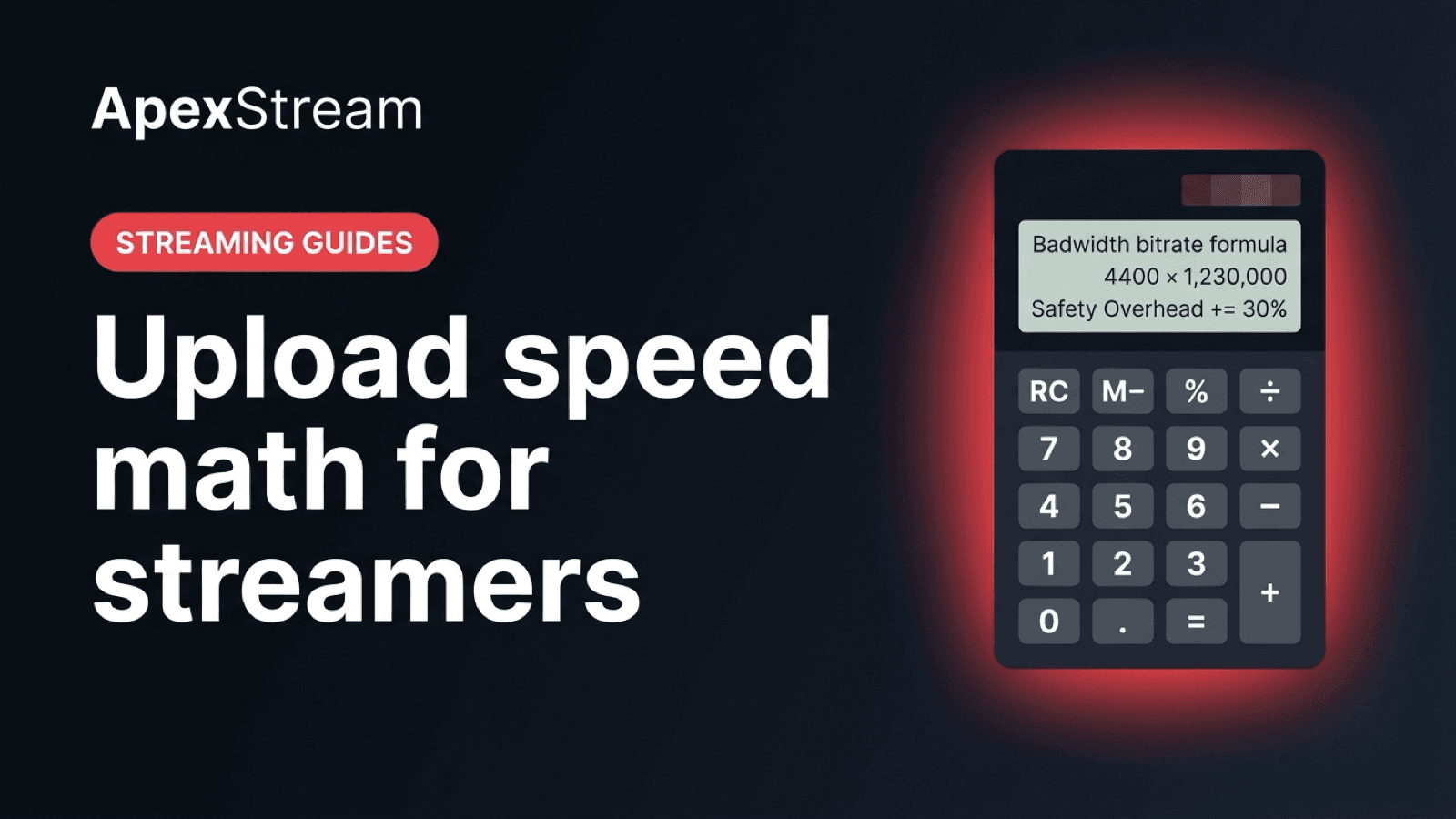
Streaming to five destinations does not automatically mean your home connection must upload five separate copies. The answer depends on where the copies are made. If your computer sends one feed to each platform, the upload demand grows with every destination. If a cloud service receives one master feed and distributes it, your local connection only carries that master feed.
ApexStream uses server-side fan-out for the connected destinations. Your encoder or Web Studio sends one feed to ApexStream, and the cloud handles the copies. That changes the math, but it does not make a weak connection safe. You still need enough upload headroom for the one feed you are sending.
One master feed, many destinations
With client-side multistreaming, three 6 Mbps outputs would ask your computer to upload about 18 Mbps before normal network overhead. A brief drop in home upload speed can affect all three streams at once.
With server-side fan-out, the computer sends one 6 Mbps master feed to ApexStream. ApexStream receives it, then sends copies to the selected channels. The number of destinations still matters for your ApexStream plan and for moderation, but it does not multiply the local video upload in the same way.
Use a safety margin
Do not choose a plan bitrate equal to the speed shown by a short speed test. Home networks fluctuate, other people use the connection, and upload packets compete with backups or calls. As a starting estimate, the source workflow uses:
Minimum Required Home Upload Speed = Single Master Bitrate × 1.4
The multiplier is a planning margin, not a promise. A steady wired connection is still more useful than a brief peak number.
Three examples
- Hobby: a 6 Mbps master feed multiplied by 1.4 gives an estimated 8.4 Mbps minimum upload. The feed can then fan out to the plan’s supported destinations.
- Creator: a 9 Mbps master feed gives 12.6 Mbps with the same margin.
- Scale: a 15 Mbps master feed gives 21 Mbps with the same margin.
Include audio and protocol overhead in the actual encoder setting. If your plan cap is a total feed limit, do not send the full cap as video and then add audio on top of it.
Test stability, not just speed
A connection can show a high upload rate and still behave badly during a live show. Jitter creates changing delivery times. Bufferbloat appears when a router holds too many upstream packets in a queue, adding delay while the stream is running. The result can be dropped packets or a disconnect even though the headline speed looks sufficient.
- Use Ethernet when it is available.
- Run a sustained upload test, not only a short burst test.
- Pause cloud backups and large uploads during the broadcast.
- Use router Quality of Service settings if you know how to prioritize the stream.
Then run a private or unlisted test with the same bitrate and scenes you use on air. Watch the encoder and the ApexStream ingest together. If the master feed is steady, adding a destination should not require multiplying the local upload number—but it will still use a destination slot on your plan.
The practical takeaway
Size your connection for one good master feed, not five mediocre copies. Leave room for ordinary household traffic, test the line for the length of a real show, and choose the bitrate your plan and network can carry. Cloud fan-out reduces local upload work; it does not replace basic network discipline.
Write the result down next to the encoder profile. If your master feed is 6 Mbps, the 8.4 Mbps planning estimate tells you what the connection should sustain before you add the rest of the household’s normal traffic. Recheck it after a router change or an internet-plan change; the number on an old speed-test screenshot is not a guarantee for a new live show.
Run that check before you promise a high-bitrate event to a client.